
Chroma Key in KineMaster is a remarkable feature that allows you to remove the green background from your movie and replace it with any picture or clip you desire. It’s popular among artists who want to make their videos look more professional without using pricey equipment or difficult software. You can generate studio-style visuals in minutes with only your phone and KineMaster.
Why it is important
The main reason people utilize the Chroma Key feature is for creative freedom. It lets you change locations, add custom backgrounds, record reaction videos, and appear in front of presentations and gameplay. It’s especially handy for YouTube creators, online teachers, vloggers, and social media users who want to create clean, visually appealing content while keeping the editing process simple.
How to Use Chroma Key (Green Screen) in KineMaster
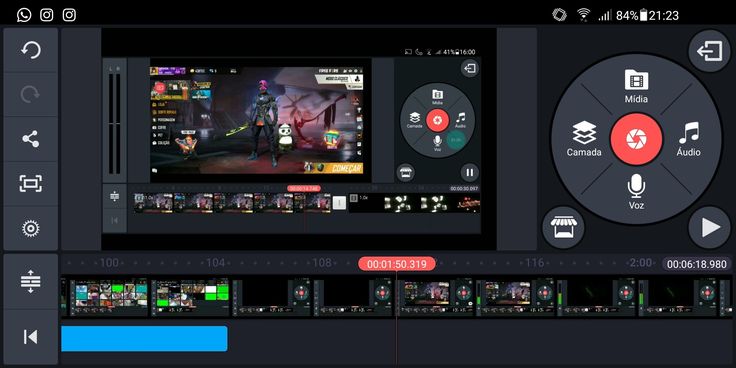
First, launch KineMaster and create a new project. Choose an aspect ratio that suits your platform, such as 16:9 for YouTube or 9:16 for short-form videos. Add a background movie or image to the main timeline. This will be the foundational layer of your project.
Next, tap Layer, then Media, and place your green screen video above the background. Tap the green screen clip to enable Chroma Key, then carefully modify the settings. Increase the threshold to remove the green hue, fine-tune similarity for uneven places, and use smoothness to smooth down rough edges. Once the background has been completely removed, resize and position the subject, make minor color tweaks as needed, and export your movie in high quality.
Conclusion
Using Chroma Key in KineMaster is a simple method to elevate your films to the next level without requiring expensive tools or professional studios. Once you know how to layer clips and appropriately change the Chroma Key settings, you can build clean, realistic backdrops that make your material stand out. With a little effort and proper lighting, this function may help you create polished videos for YouTube, social networking, or instructive content directly from your phone.