
Adding captions and subtitles in KineMaster APK is a fantastic way to make your videos more clear and engaging. Captions help viewers understand your message even when sound is off, while subtitles make content easy for everyone to follow. In this guide we will see how you can add captions and subtitles in KineMaster step by step using simple tools.
What Are Subtitles and Captions in KineMaster
Subtitles and captions are text shown on the screen with the video. They help viewers understand what is being said in the video. Subtitles mainly show spoken dialogue in text form. Captions include dialogue along with sound details. In KineMaster APK, both options are easy to use. You can add, edit, and adjust them without any problem. This feature makes your videos clearer and more professional.
Difference Between Subtitles and Captions
Subtitles are mostly used to translate spoken words. They focus only on what people are saying in the video. Captions show dialogue plus background sounds. For example, music playing or noise in the background. Subtitles are helpful for language understanding. Captions are useful for complete video understanding. Both serve different purposes but look similar.
Importance of Subtitles and Captions
Subtitles and captions make videos easy to understand. Many people watch videos with the sound off these days. Text helps them catch the full message. They are very helpful for hearing-impaired viewers. Videos with text get more attention on social media. They increase engagement and watch time. This is why they are very important today.
How to Add Subtitles in KineMaster APK
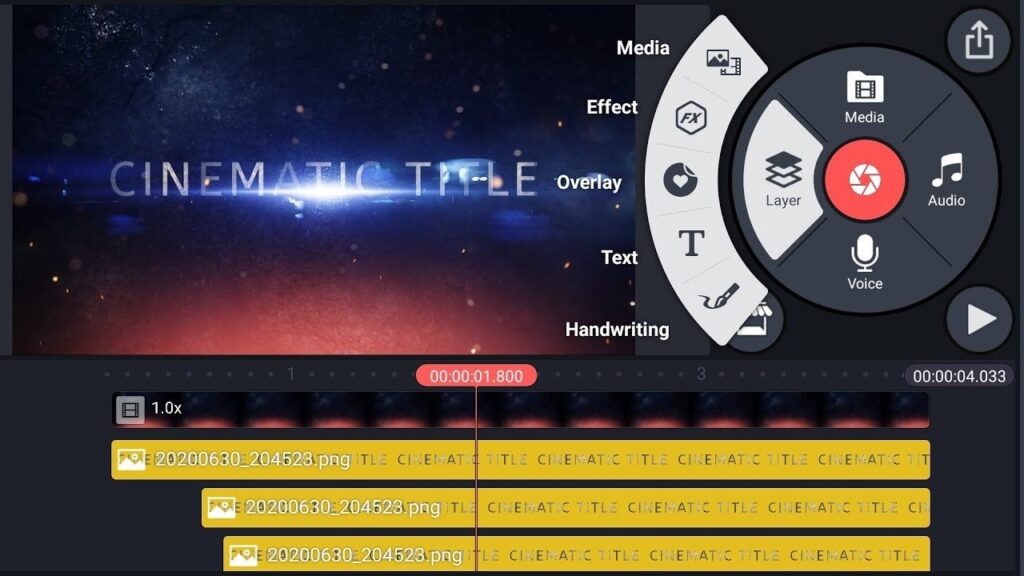
Start by importing your video into KineMaster. Place the playhead in the desired location for the subtitle. Type the dialogue after selecting Text option. You can change the font’s size, color, and style as you see fit. As the words are said, adjust the timing. The subtitle should be positioned correctly on the screen. You can now utilize your subtitle.
How to Add Captions in KineMaster APK
Open your video project in KineMaster APK. Tap on “Layer” and select the “Text” option. Write captions including sound or action details.
For example
Background music or sound effects. Change the font and position for better visibility. Adjust timing so captions match the scene. Save your video after the final check.
Benefits of Subtitles and Captions
Subtitles help reach a wider audience easily. Captions make videos more informative and clear. They improve viewer understanding and interest. Videos with text perform better on social platforms. They help in education and content learning. Audience engagement increases naturally. Overall, your content looks more professional.
Conclusion
Subtitles and captions are powerful tools in KineMaster APK. They improve video quality and viewer experience. Adding text is simple and does not take much time. Both features help in growing your audience. If you want better reach, always use captions. Practice will make you faster and better. KineMaster makes this process easy for everyone.